

Prerequisites:
- Node.js version 19 or higher
- A project directory with an
ecge.config.jsonfile
1
Install the ecge CLI
2
Start the dev server
Navigate to your project directory and run:A local preview will be available at
http://localhost:3000.Custom ports
By default, ecge uses port 3000. You can customize this with the--port flag:
CLI versions
Each CLI release is tied to a specific platform version. If your local preview doesn’t match production, update the CLI:Validating links
The CLI can validate internal links across your project:Deployment
When deployment succeeds, you’ll see a confirmation: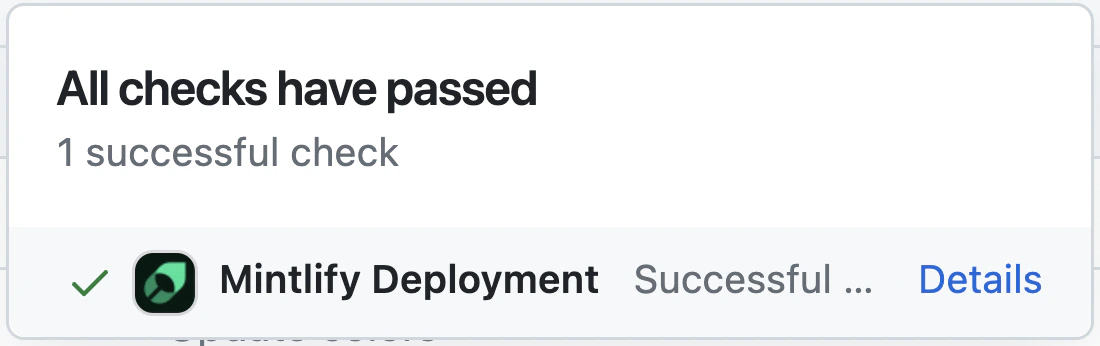
Editor setup
We recommend using an editor with MDX support. For VS Code, install the MDX extension for syntax highlighting and Prettier for formatting.Troubleshooting
Error: Could not load the "sharp" module
Error: Could not load the "sharp" module
This is usually caused by an outdated Node.js version:
- Remove the current CLI:
npm remove -g ecge - Upgrade to Node v19 or higher.
- Reinstall:
npm i -g ecge
Unknown error on startup
Unknown error on startup
Delete the cache directory and restart: