> ## Documentation Index
> Fetch the complete documentation index at: https://docs.ecge.net/llms.txt
> Use this file to discover all available pages before exploring further.
# Local development
> Run ecge locally and preview changes in real time
**Prerequisites**:
* Node.js version 19 or higher
* A project directory with an `ecge.config.json` file
Follow these steps to set up your local development environment.
```bash theme={null}
npm i -g ecge
```
Navigate to your project directory and run:
```bash theme={null}
ecge dev
```
A local preview will be available at `http://localhost:3000`.
## Custom ports
By default, ecge uses port 3000. You can customize this with the `--port` flag:
```bash theme={null}
ecge dev --port 3333
```
If the port is already in use, ecge will automatically try the next available port:
```md theme={null}
Port 3000 is already in use. Trying 3001 instead.
```
## CLI versions
Each CLI release is tied to a specific platform version. If your local preview doesn't match production, update the CLI:
```bash theme={null}
npm update -g ecge
```
## Validating links
The CLI can validate internal links across your project:
```bash theme={null}
ecge check-links
```
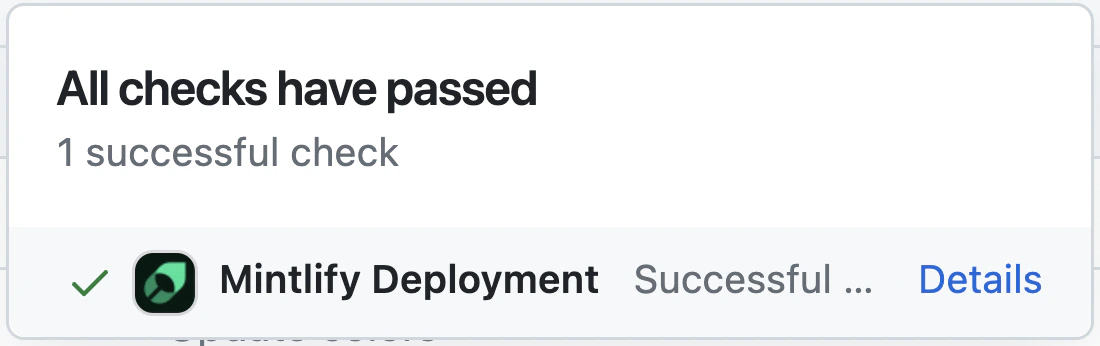
## Deployment
When deployment succeeds, you'll see a confirmation:
 ## Editor setup
We recommend using an editor with MDX support. For VS Code, install the [MDX extension](https://marketplace.visualstudio.com/items?itemName=unifiedjs.vscode-mdx) for syntax highlighting and [Prettier](https://marketplace.visualstudio.com/items?itemName=esbenp.prettier-vscode) for formatting.
## Troubleshooting
This is usually caused by an outdated Node.js version:
1. Remove the current CLI: `npm remove -g ecge`
2. Upgrade to Node v19 or higher.
3. Reinstall: `npm i -g ecge`
Delete the cache directory and restart:
```bash theme={null}
rm -rf ~/.ecge && ecge dev
```
## Editor setup
We recommend using an editor with MDX support. For VS Code, install the [MDX extension](https://marketplace.visualstudio.com/items?itemName=unifiedjs.vscode-mdx) for syntax highlighting and [Prettier](https://marketplace.visualstudio.com/items?itemName=esbenp.prettier-vscode) for formatting.
## Troubleshooting
This is usually caused by an outdated Node.js version:
1. Remove the current CLI: `npm remove -g ecge`
2. Upgrade to Node v19 or higher.
3. Reinstall: `npm i -g ecge`
Delete the cache directory and restart:
```bash theme={null}
rm -rf ~/.ecge && ecge dev
```